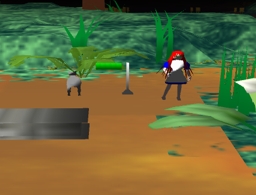
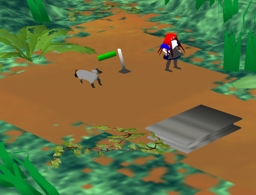
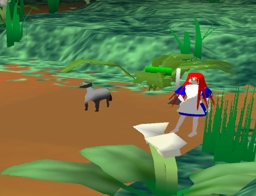
The camera can be positioned in any of 360° by hugging the edge of the screen with the mouse.
|
|
|
When you select a clickable object, the screen will become centered on the object
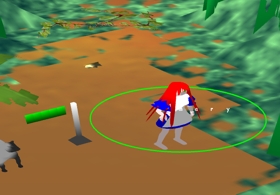
but you can disable the centering by locking the camera (Ctrl+L).
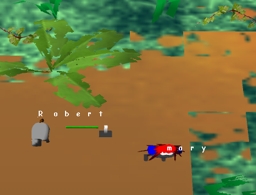
There are three standard viewing angles
| Top | Regular | Front |
 |
|
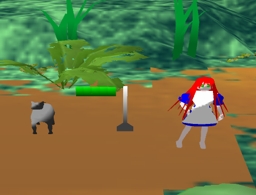 |
| CTRL+T Top-view simulates most current battlemaps. |
CTRL+R Best viewing angle |
CTRL+F See exactly what your character can see |
Note, you can move the camera even when it's locked by using the 3 viewing angles or by pressing CTRL while dragging the map. CTRL is the general override, as you'll see in the coming sections.
You can zoom in and out using your scrollwheel or +/- on the keyboard.

Keyboard directions (eg arrowkeys) will move as well as holding CTRL while dragging.
Hold CTRL while using the arrowkeys to move quickly.
The World
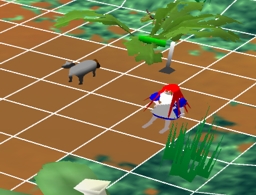
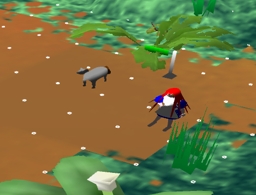
If necessary, apply a grid by pressing Ctrl+G. Several styles of grid are available.
|
|
| Regular Grid Lines | Dots |
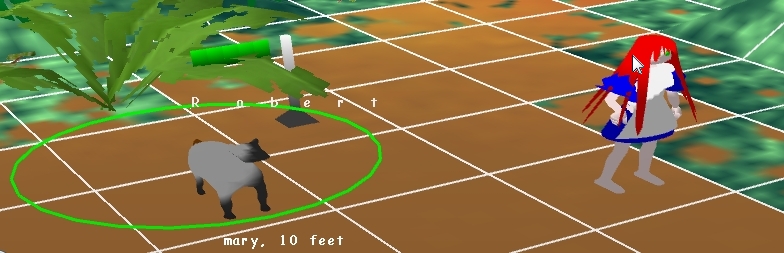
Once a token is selected, distance is automatically calculated (even with Grid off).
In this example, Robert the Donkey is selected. By hovering the mouse over Mary, we see that she is 10 feet away.
Other useful shortcuts are:
Helpful Tips: